The two basic modes are called Normal mode and Insert mode. In Normal mode the characters you type are commands. In Insert mode the characters are inserted as text.
Normal -> i -> Insert
Insert -> 'ESC' -> Normal
In Normal node, you can move around by using these keys:
h left *hjkl*
j down
k up
l right
We can use a count "n" to repeat n times of the command
To delete a character, move the cursor over it and type "nx"
To delete a whole line use the "ndd" command
To delete a line break move the cursor to the first line and press "nJ"
The "u" command indoes the last edit
"CTRL-R" (redo) to reverse the preceding command
"i" command inserts a character before the character under the cursor.
"a" append a character after the character under the cursor.
The "o" command creates a new, empty line below the cursor and puts Vim in Insert mode.
The "O" command (uppercase) opens a line above the cursor.
"ZZ" writes the files and exits
"w" move the cursor forward one word
"e" command that moves to the next end of a word
"b" command moves backward to the start of the previous word
"ge" command moves to the previous end of a word
"$" command moves the cursor to the end of a line.
"^" command moves to the first non-blank character of the line.
"0" command (zero) moves to the very first character of the line.
"fx" searches forward in the line for the single character x.
"Fx" searches backward in the line for the single character x.
"tx" command works like the "fx" command, except it stops one character before the searched character.
"Tx" searches backward in the line except it stops one character before the searched character.
"xG" positions you at the given line number
"gg" start of a gile
"G" end of the file
"H" screen top
"M" screen middle
"L" screen botto"CTRL-U" command scrolls up half a screen of text.
"CTRL-D" command scrolls down half a screen in the file,
"CTRL-E" scroll up one line
"CTRL-Y" scroll up one line
"CTRL-F" scroll forward by a whole screen (except for two lines)
"CTRL-B" scroll backward by a whole screen
"*" command. Vim will grab the word under the cursor and use it as the search string. Same as "/"
"#" command. Vim will grab the word under the cursor and use it as the search string. Same as "?"
The "\>" item is a special marker that only matches at the end of a word.
Similarly "\<" only matches at the begin of a word.
The . (dot) character matches any existing character. If you really want to match a dot, you must avoid its special meaning by putting a "\" before it.
The command "ma" marks the place under the cursor as mark a. You can place 26 marks (a through z) in your text. You can't see them, it's just a position that Vim remembers. To go to a mark, use the command `{mark}, where "{mark} is the mark letter.
":marks" to get a list of marks
Visual mode
"v" start Visual mode. You move the cursor over the text you want to work on. While you do this, the text is highlighted. Finally type the operator command.
"CTRL-v" start Visual mode. It works on a rectangular block of characters.
"o" If you have selected some text in Visual mode, and discover that you need to change the other end of the selection, use the "o" command. The cursor will go to the other end, and you can move the cursor to change where the selection starts.
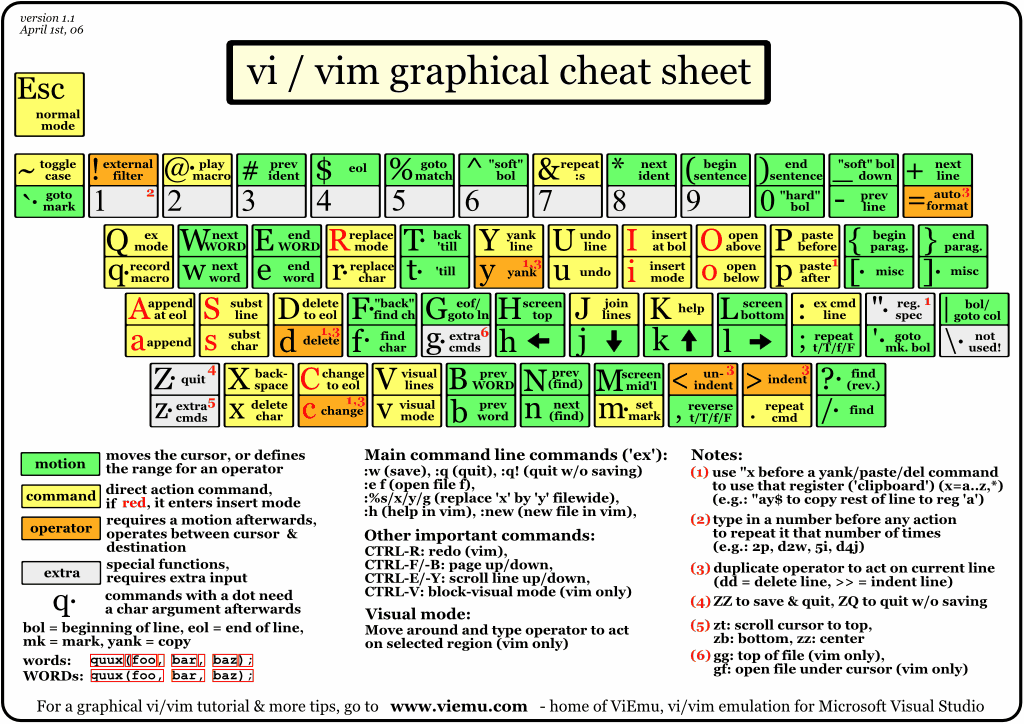
VIM cheat sheet reference
http://www.viemu.com/vi-vim-cheat-sheet.gif
8/28/2008

8/10/2008
TCP/IP model and Data Encapsulation
The TCP/IP architectural model has four layers
1. Application Layer - HTTP, HTTPS, SMTP, POP3, FTP and etc.
2. Transport Layer - TCP, UDP and etc.
3. Network Layer - IP, ICMP, IGMP, IPSec and etc.
4. Link Layer - ARP, RARP, MAC and etc.
Data Encapsulation
1. HTTP: DATA
2. TCP/UDP: TCP DATA
3. IP: IP TCP DATA
4. MAC Address: MAC IP TCP DATA
1. Application Layer - HTTP, HTTPS, SMTP, POP3, FTP and etc.
2. Transport Layer - TCP, UDP and etc.
3. Network Layer - IP, ICMP, IGMP, IPSec and etc.
4. Link Layer - ARP, RARP, MAC and etc.
Data Encapsulation
1. HTTP: DATA
2. TCP/UDP: TCP DATA
3. IP: IP TCP DATA
4. MAC Address: MAC IP TCP DATA
訂閱:
文章 (Atom)